The fast, simple way to pay with Google.
About Google Pay
Use your Android device for easy, secure payments in store, in apps, and online from your Bendigo Bank debit or credit card.
-
High security
-
Super convenient
-
Simple set up and use
Leave your bank card at home, Google Pay is all you need.
Add your eligible Bendigo Bank card today. Learn more.
Secure payments
-
Google Pay doesn’t send your actual credit or debit card number with your payment.
-
We use a virtual account number to represent your account information - so your card details stay safe.
-
You will be prompted to unlock your phone once three transactions under $100 without a PIN have been performed.
-
Find out more about Bendigo Bank card security.
Ways to set up Google Pay
You have two choices via the Bendigo Bank app, or via the Google Pay wallet on your phone.
Setting up Google Pay via our Bendigo Bank app
No more waiting for your plastic card to arrive before you can start spending. Now you can add your card to Google Pay via our Bendigo Bank app.
-
1Download and open the Bendigo Bank app
-
2Tap 'more' and then 'cards'
-
3Tap the card you want to add
-
4Tap 'Add to G Pay' and follow the prompts
Setting up Google Pay via the Google Pay app
-
1Open Google Pay on your phone or download it from the Google Play store
-
2Add your credit or debit card by taking a photo of the card or manually typing in the card details
-
3For security purposes, we will send you a verification code to your registered email address or mobile number
How to use Google Pay in store
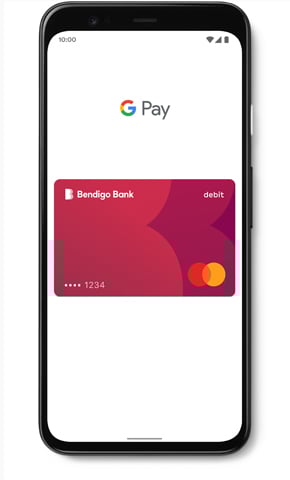
To make a payment, simply unlock your phone and tap on a shop’s contactless card reader. There’s no need to open an app. Just tap, pay, done!
The purchase amount will then be debited from the card you have loaded as the default card.
When you make a purchase, you’ll see a payment confirmation that shows you exactly where the transaction happened, along with the merchant’s name and number.
Frequently asked questions
Everything you need to know about your Google Pay.
What is Google Pay?
Google Pay allows you to use your compatible Android smartphone to simply and securely pay in store, on websites or in apps.
Which Bendigo Bank cards will Google Pay work with?
Google Pay supports all our Bendigo Bank credit cards and Debit Mastercard.
Is Google Pay secure?
Using your Bendigo Bank cards with Google Pay is secure:
- A maximum of three purchases can be made for amounts under $100 without needing to unlock your phone or enter your card PIN into the terminal.
- You are required to unlock your device either by biometrics or PIN.
- When you use Google Pay, your card number is never shared with the merchant or saved on your device.
- Bendigo Bank monitors unusual activity across all your transactions 24/7.
- And don’t forget, you are still protected by Visa and Mastercard's Zero Liability policies.
How do I keep my device and card details secure?
Contact us as soon as possible if you suspect any unauthorised use of your device, if it is lost/stolen, or if you think your details have been compromised.
Register your device through your Google account. This will allow you to find, lock and delete details on your phone if it’s lost or stolen.
Never leave your device unattended. Use appropriate security on your device such as passcodes and fingerprint recognition. Only register your own fingerprint (if your device supports this feature).
Please be aware of unsolicited messages asking you to install software, to allow access to your devices or to reveal any personal or financial information.
Use anti-virus software, update it regularly and accept any updates to the Device’s OS.
How many cards can I load into Google Pay?
There is no limit on the number of cards you can load into the app, however you must be the owner or applicable signatory of all cards added.
How do I remove a card?
There are two ways to remove a payment card:
On your phone
- Open the Google wallet.
- If you have multiple Google Accounts in Google Pay: At the top right, touch your name, then choose the account you want to remove a card from.
- Double tap the card you want to remove.
- Scroll down, then touch ‘Remove payment method’.
On the web
- Sign in to accounts.google.com.
- On the left, click Payment methods.
- To the right of the card, click Remove.
Do I still get reward points when I use Google Pay?
Yes, if you are using a credit card with rewards you’ll continue earn points when using Google Pay.
Can I view transactions in Google Pay?
Yes, you can view the last 50 transactions made using your card.
For a full list of transactions, login to Bendigo Bank e-banking.
How do I change my default card for Google Pay transactions?
The first card you add to Google Pay will automatically become your default card.
You can change your default card two ways:
On your phone
- Open the Google Wallet.
- If you have multiple Google Accounts in Google Pay: At the top right, touch your name, then choose an account.
- To set a default tap the card and select the 3 dots top right.
- Hit 'Make default for tap to pay'.
On the web
- Sign in to accounts.google.com.
- On the left, click Payment methods.
- To the right of a card, click Set as default.
What happens if my phone is lost or stolen?
If your phone is lost or stolen, you can find, lock, or erase Google Pay using Googles Android Device Manager.
Since Google Pay doesn't store your card details on your phone, anyone who finds or steals your phone won't be able to access that information, even if it's unlocked.
Important: Android Device Manager won't work for devices that are turned off or that don't have a Wi-Fi connection or mobile data connection with an active SIM card.
Alternatively, call the Bank on 1300 236 344 and we'll suspend or delete your Google Pay Virtual Account Numbers.
You can still use your plastic card.
How do I update Google Pay if my card is lost or stolen?
Please call the Bank immediately. We will cancel your card and order you a replacement.
Alternatively, you can block your card via the Bendigo Bank app using the card control 'temporarily block card'.
Your card can also be close and replaced via the app using the 'report card lost or stolen' option.
Your Google Pay Virtual Account Number will automatically be updated with your new card details, so you can continue making purchases while you wait for your plastic card to arrive.
You will still need to activate your plastic card when received.
If I receive a replacement Bendigo Bank card, do I need to add my card again?
Generally, no if you receive a replacement card your Google Pay Virtual Account Number will be automatically updated with the new card details, allowing you to continue to use your wallet while you wait for your plastic card to arrive.
However if, your card has been replaced due to being compromised through fraudulent activity, you will need to add your new card to your wallet. Don’t worry, you don’t need to wait for your plastic card to arrive, you can simply add your new card through the Bendigo Bank app.
You will still need to activate your plastic card when received.
What card data is stored on the phone?
Google Pay doesn’t store your actual credit or debit card number. Instead we use a virtual account number to represent your account information — so your card details stay safe.
Where can I find out more information about Google Pay?
You can read more about Google Pay on the Android Pay website.
Learn more about Google Pay
More information
Things you should know
Google Pay is a trademark of Google LLC.
Mastercard® is a registered trademark, and the circles design is a trademark of Mastercard International Incorporated.