Add your eligible Bendigo Bank card today.
About Apple Pay
Use your Apple device for easy, secure payments in store, in apps, and online from your Bendigo Bank debit or credit card.
-
High security
-
Super convenient
-
Simple set up and use
Leave your bank card at home, Apple Pay is all you need.
Add your eligible Bendigo Bank card today. Learn more.
Secure payments
Its more secure and private than your traditional bank card. Here’s how:
-
When you make a purchase, Apple Pay uses a device-specific number and unique transaction code.
-
Your full card number is never stored on your device or on Apple servers, and it can't be shared with merchants.
-
Apple Pay doesn't keep transaction information that can be tied back to you, ensuring all purchases are private.
-
If your card is lost or misplaced and it's temporarily blocked, you can still shop using Apple Pay.
Ways to setup Apple Pay
You have two choices, via the Bendigo Bank app or via the Wallet app on your iPhone.
Setting up Apple Pay via our Bendigo Bank app
No more waiting for your plastic card to arrive before you can start spending. Now you can add your card to your Apple Wallet via our Bendigo Bank app.
Don't have the app? Download it via the App Store (IOS).
Don't have the app? Download it via the App Store (IOS).
-
1Download and open the Bendigo Bank app
-
2Tap 'more' and then 'cards'
-
3Tap the card you want to add, then tap 'add to Apple Wallet'
-
4Follow the prompts to set your PIN
To automatically select your card when you need it, simply tap 'use as default card' and you're good to go.
Setting up Apple Pay via the Wallet
If you don't have the Bendigo Bank app you can still add your card to your digital Wallet via Apple Pay. You just need to have your card handy to scan or enter your details.
-
1Open the Wallet app and tap the + sign in the top right corner
-
2Use your phone to tap the back of your card, or manually enter the details
-
3If prompted, enter your card security code. Next read and accept the terms and conditions
-
4For security purposes we may ask you to call us, or we may send you a verification code via SMS to your registered mobile number
How to use Apple Pay in store
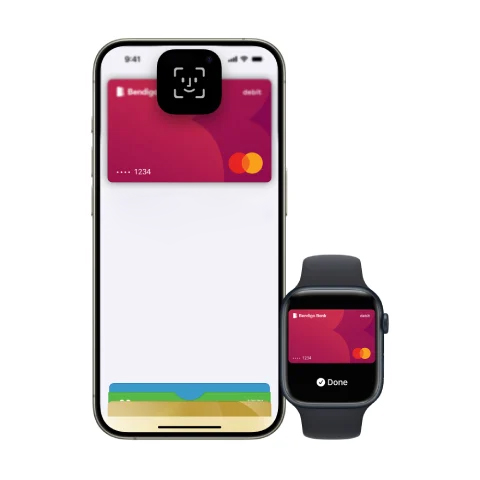
iPhone with Face ID
Double click the side button, glance at your screen, then hold iPhone near reader.
iPhone with Touch ID
Double click the home button, then hold your iPhone near the reader with your finger on the Touch ID.
Apple Watch
Double click the side button and hold Apple Watch up to the reader.
Frequently asked questions
Everything you need to know about your Apple Pay.
What is Apple Pay?
Apple Pay allows you to use your compatible Apple device to simply and securely make purchases in store, on websites or in apps.
Which Bendigo Bank cards will Apple Pay work with?
Apple Pay supports all our Bendigo Bank credit cards and Debit Mastercard.
What do I need to set up Apple Pay?
You will need:
- Your eligible device
- Your Bendigo Bank credit or debit card
- The latest version of iOS, watchOS, or macOS
- An Apple ID signed in to iCloud
In stores, you can use Apple Pay on your iPhone or Apple Watch. Within apps, you can use Apple Pay on your iPhone, iPad, and Apple Watch. On the web in Safari, you can use Apple Pay on your iPhone, iPad, and Mac.
Will I continue to earn rewards and benefits from my credit, debit or prepaid cards when I pay using Apple Pay?
Yes. When you pay using Apple Pay, you'll continue to get the rewards and benefits that your Bendigo Bank credit and debit cards provide.
Is Apple Pay secure?
Using your Bendigo Bank cards with Apple Pay is secure:
- When you use Apple Pay, your card number is never shared with the merchant or saved on your device.
- You are required to unlock your device either by biometrics or PIN.
- Bendigo Bank monitors unusual activity across all your transactions 24/7.
- And don’t forget, you are still protected by Visa and Mastercard's Zero Liability policies.
How do I keep my device and card details secure?
Contact us as soon as possible if you suspect any unauthorised use of your device, if it is lost/stolen, or if you think your details have been compromised.
Register your device through your Apple account. This will allow you to find, lock and delete details on your phone if it’s lost or stolen.
Never leave your device unattended. Use appropriate security on your device such as passcodes and fingerprint recognition. Only register your own fingerprint (if your device supports this feature).
Please be aware of unsolicited messages asking you to install software, to allow access to your devices or to reveal any personal or financial information.
Use anti-virus software, update it regularly and accept any updates to the Device’s OS.
What if my iPhone, iPad, Apple Watch, or Mac is lost or stolen?
With Apple Pay, you authorise each purchase with Touch ID or your passcode. And every time you put on your Apple Watch, you need to enter your passcode to access it. These features help prevent other people from using Apple Pay on your iPhone, iPad, Apple Watch, or Mac.
You can go to icloud.find or use the Find My iPhone app to suspend or permanently remove the ability to pay from that device with Apple Pay.
Your cards will be suspended or removed from Apple Pay even if your device is offline and not connected to a cellular or Wi-Fi network. You can also call us on 1300 236 344 to suspend or remove your cards from Apple Pay.
How do I update Apple Pay if my card is lost or stolen?
Please call the Bank immediately. We will cancel your card and order you a replacement.
Alternatively, you can block your card via the Bendigo Bank app using the card control 'temporarily block card'.
Your card can also be close and replaced via the app using the 'report card lost or stolen' option.
Your Apple Pay Device Account Number will automatically be updated with your new card details, so you can continue making purchases while you wait for your plastic card to arrive.
You will still need to activate your plastic card when received.
If I receive a replacement Bendigo Bank card, do I need to add my card again?
Generally, no if you receive a replacement card your Apple Pay Device Account Number will be automatically updated with the new card details, allowing you to continue to use your wallet while you wait for your plastic card to arrive.
However If, your card has been replaced due to being compromised through fraudulent activity, you will need to add your new card to your wallet. Don’t worry, you don’t need to wait for your plastic card to arrive, you can simply add your new card through the Bendigo Bank app.
You will still need to activate your plastic card when received.
How can I check my recent transactions?
When you view your card in the Wallet, you’ll see the latest transactions for each credit or debit card. Always refer to the statement or e-banking for more transactions.
Can I continue to use my plastic credit, debit, or prepaid cards if I suspend or remove my cards in Wallet?
When you suspend or remove your cards in Wallet, your device-specific Device Account Number is suspended or removed. You can continue to use your plastic cards.
My dual network debit card in Apple Pay has changed, I no longer have the option to select the payment network (Mastercard and EFTPOS)?
Yes, the user experience has changed, merchants will now select the network in which they wish to route transactions. You can still use Apple Pay the same way you always have by double clicking the side button and authenticating with Touch ID, Face ID or passcode.
How can I check if my dual network debit card in Apple Pay supports both Mastercard and EFTPOS payment networks?
You can determine whether your dual network debit card supports both networks by;
On iPhone
1. Open the Wallet app
2. Tap on your card
3. Tap the ‘More’ button
4. Tap ‘Card Details’
5. Tap ‘Card Information’
Within the Card Information section, if you see Mastercard or Visa and eftpos network, then the card is a dual network debit card.
On Apple Watch
1. Open the Wallet app
2. Select the dual network debit card
3. Tap ‘Card Details’
After following the above steps, if you see eftpos and an international debit network (Mastercard or Visa), then the card is a dual network debit card.
Learn more about Apple Pay
More information
You may also be interested in




Things you should know
*Terms and Conditions apply. Apple, the Apple logo, Apple Pay, Apple Watch, Face ID, iPad, iPhone, iTunes, Mac, MacBook Pro, Safari, and Touch ID are trademarks of Apple Inc., registered in the U.S. and other countries. Touch Bar is a trademark of Apple Inc.
Apple Pay works with iPhone 6 and later in stores, apps, and websites in Safari; with Apple Watch in stores and apps (requires iPhone 6 or later); with iPad Pro, iPad (5th generation), iPad Air 2, and iPad mini 3 and later in apps and websites in Safari; and with Mac (2012 or later) in Safari with an Apple Pay–enabled iPhone or Apple Watch. For a list of compatible Apple Pay devices, see support.apple.com/km207105.
Mastercard® is a registered trademark, and the circles design is a trademark of Mastercard International Incorporated.